

How to get Reserve with Google?
What is Reserve with Google?
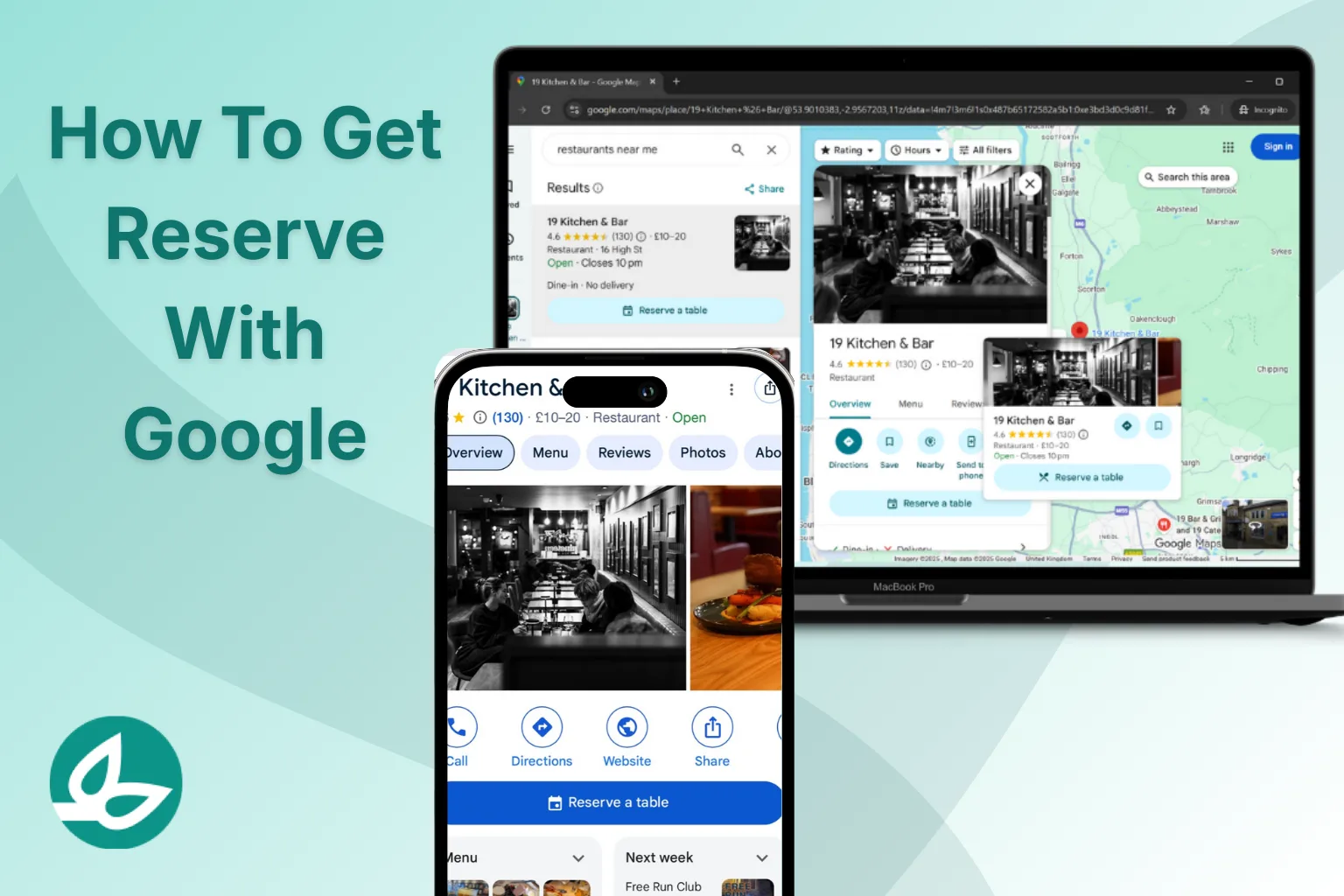
Reserve with Google allows customers to book a table directly from Google Search and Google Maps using the “Reserve a table” button shown on a restaurant’s Google listing.
When a customer clicks the button, they are shown live availability pulled from the restaurant’s booking system. Once confirmed, the booking is sent straight into the restaurant’s diary in real time.
There is no separate Google booking system to manage. Reserve with Google is a connection between Google and a restaurant’s existing reservation software.
Why restaurants use Reserve with Google
The main reason restaurants enable Reserve with Google is conversion at the point of intent.
Across the hospitality industry, booking platforms and technology providers report that enabling Reserve with Google typically results in between 5% and 30% more bookings on average. The exact uplift varies by location, demand, and how easy the restaurant already is to book online.
The increase usually comes from:
- Capturing bookings directly from Google Maps searches
- Reducing steps for mobile users
- Converting last-minute and “near me” searches
Reserve with Google does not replace a restaurant’s website or booking system. It simply removes friction at the moment diners are deciding where to eat.
How Reserve with Google works (in practice)
Reserve with Google only works if three things are in place:
- A booking system that is an approved Google reservation partner
- A verified and correctly categorised Google listing
- Live availability configured correctly in the booking system
Google does not accept manual availability uploads or custom booking links for Reserve with Google. Everything must flow through an approved provider.
Step 1: confirm your booking system supports Reserve with Google
The first step is to check whether your current booking system is a Google partner — and whether Reserve with Google is included on your plan.
Below is a comparison of commonly used booking systems, if they provide and charge extra for Reserve with Google.
Reserve with Google support by booking system
| Booking system | Google partner | Availability |
| Sugarvine Tables | Yes | Included as standard |
| resmio | Yes | Included as standard |
| Tableo | Yes | Included as standard |
| resOS | Yes | Included as standard |
| Guestplan | Yes | Included as standard |
| OpenTable | Yes | Premium tiers only |
| ResDiary | Yes | Premium tiers only |
| SevenRooms | Yes | Premium tiers only |
| TheFork | Yes | Premium tiers only |
| Quandoo | Yes | Premium tiers only |
| Tock | Yes | Premium tiers only |
| Eat App | Yes | Premium tiers only |
| Now Book It | Yes | Premium tiers only |
| DISH Reservation | Yes | Add-on required |
| Zonal | Yes (via Mozrest) | Add-on required |
Included as standard = available on the free or entry-level plan.
Premium tiers only = requires a higher subscription.
Add-on required = sold separately.
If your system does not support Reserve with Google, it cannot be enabled, even if Google shows a booking button linking to your website. In that instance, it may be worth reviewing you booking partner.
Step 2: contact your booking provider to enable Google
If your booking system supports Reserve with Google, the next step is not Google, it is your booking provider.
In most cases you will need to:
- Contact support or your account manager
- Ask them to enable or activate Reserve with Google
- Confirm which Google listing the bookings should connect to
Some providers activate this automatically. Others require manual approval or a short review before Google displays the booking button.
Step 3: check your Google listing is eligible
Reserve with Google availability is determined by the primary category on your Google Business Profile.
Categories that typically support Reserve with Google
- Restaurant
- Bistro
- Brasserie
- Café
- Bar & Grill
- Pub (with food service)
Categories that typically do not support it
- Hotel (as the primary category)
- Event venue
- Catering service
- Takeaway or delivery-only businesses
- Private members clubs
If your primary category is not restaurant-based, the “Reserve a table” button will not appear, even if your booking system is connected.
Hotels with restaurants: a common blocker
A frequent issue is hotels attempting to manage room availability and table availability on the same Google listing.
Google does not allow:
- Hotel room availability
- Restaurant table availability
to coexist on a single profile.
The correct setup
Hotels with restaurants should have two separate Google listings:
- Hotel listing
- Category: Hotel
- Used for room availability
- Category: Hotel
- Restaurant listing
- Category: Restaurant (or similar)
- Used exclusively for table bookings
- Category: Restaurant (or similar)
The restaurant listing should be named clearly, for example:
- The Bistro at [Hotel Name]
- [Restaurant Name] at [Hotel Name]
This allows Reserve with Google to function correctly for dining without interfering with room bookings.
Step 4: ensure name and address data matches
Reserve with Google relies on Google matching your booking system to your listing.
Common issues include:
- Slightly different restaurant names
- Address formatting inconsistencies
- Trading names used in one system and legal names in another
As a rule, the name and address in your booking system should exactly match your Google listing. Even small differences can delay or prevent activation.
Step 5: review your availability and booking rules
Reserve with Google follows the same rules as your booking system.
If Google shows no availability, it is almost always because:
- Tables are fully allocated
- Cut-off times are too restrictive
- Booking durations are too long
- Deposits or policies are blocking slots
These are configuration issues, not Google errors.
Step 6: go live and monitor bookings
Once approved, the “Reserve a table” button appears automatically on your Google listing.
There is:
- No separate Google inbox
- No additional dashboard to manage
All bookings flow into your booking system and behave like any other reservation.
Sugarvine Tables & Reserve with Google
With Sugarvine Tables, Reserve with Google is included as standard.
There are:
- No upgrades required
- No add-ons
- No per-cover charges
Once the account is live, availability connects to Google automatically and bookings from Google Search and Maps flow straight into the system.
Reserve with Google is treated as part of the core setup, reflecting how diners now discover and book restaurants.